Match Nodes
Start Node
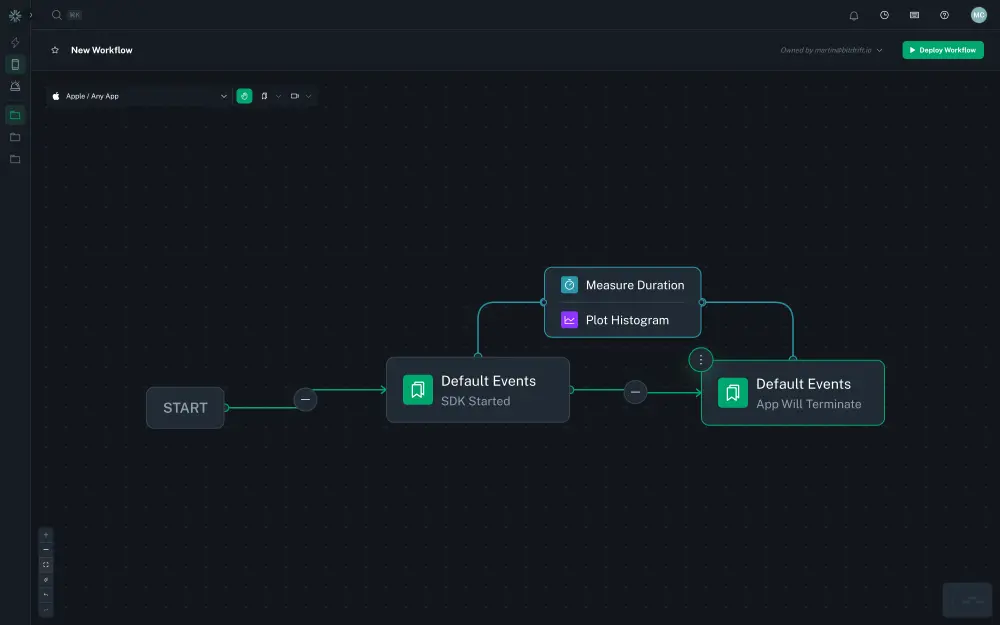
All workflows begin with a start node. This node is added to all created workflows and cannot be deleted. The start node is the entry point for logs to be processed by the workflow and allows for the definition of multiple entry conditions for the workflow. The start node is neither a match nor an action node, but a way to connect multiple initial match nodes.
Match Node Types
A matcher is a 'step' in a workflow. Each step is activated upon the processing of a new log that meets the specified criteria. Match conditions are split into two categories:
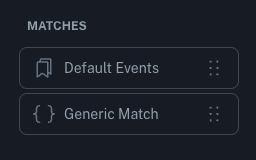
Default Events
These are match conditions tailored for events emitted by the SDK by default or via other integration points. As these are well known events, the UI offers various built-in options for these types of matchers.
Read the SDK > Log Events section to learn more about the automatic instrumented logs.
Generic Match
These match conditions apply to any log line sent to the mobile SDK, enabling the addition of matchers that target logs not initially provided by the mobile SDK, such as custom instrumentation incorporated in user code.
Read the SDK > Custom Logs section to learn more about instrumenting your app.
Match Conditions
A condition is defined by a series of logical ANDs and ORs that are used to match the log body, log fields and exposed feature flags. If the condition evaluates to true then the node first executes any attached actions and then advances to the next match conditions if any.
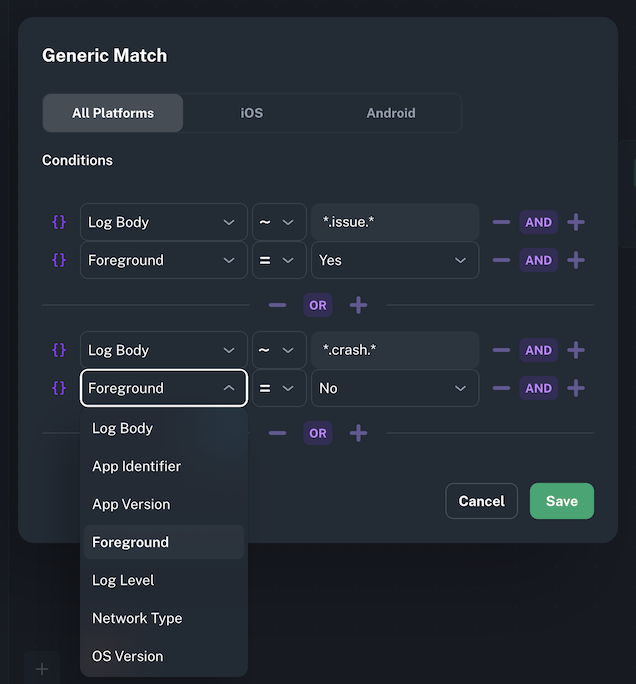
The field list is pre-populated with the attributes automatically attached to every log by the SDK. The matching operators support text matching (exact, negation, regex), numeric matching (equals, greater than, lesser than), as well as wildcard matching. The regex matcher is not a full regex match; it matches as long as a pattern occurs anywhere in the string. For example, the regex "foo" matches the message "foobar".
If desired you can limit your matching logic to a specific platform using the tab selector (iOS / Android).
Read the SDK > Default Fields section to learn more about the automatic instrumented fields.
Feature Flag Exposure



When a user is exposed to a feature flag via the SDK > Feature Flags Feature, a state change event is processed by the workflow engine. This works much like matching on a log can read exposed feature flag values as well as globally set fields. This event is guaranteed to be processed before any logs observe the feature flag through its match conditionals.
Timeout Matcher



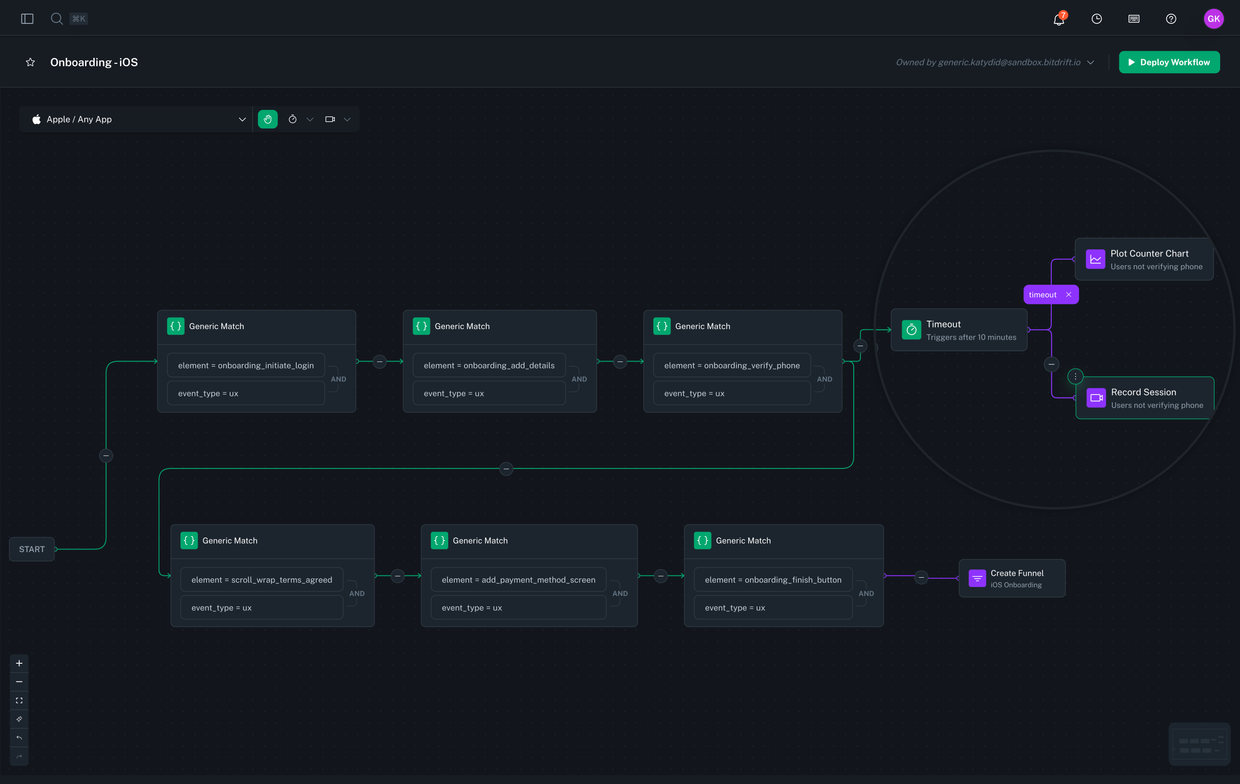
The Timeout Matcher allows workflows to progress based on inactivity, when no log matches occur within a given timeframe. This enables a powerful class of investigations focused on understanding what didn't happen, such as abandoned onboarding flows, stuck network retries, or moments of unexpected inactivity.
To add a Timeout Matcher, connect it after one or more existing match nodes. The Timeout Matcher will begin counting down after the preceding node is matched. If no further matches occur along any of the forward paths within the configured timeout duration, the Timeout Matcher activates.
Info
Timeouts measure time in wall-clock time from the moment the preceding match node was triggered. If another match node is hit first, the timeout is canceled.
Example use cases
- A user reaches the phone verification screen but doesn't verify their number within 10 minutes.
- A screen view is shown, but no user interaction is logged after 30 seconds.
Timeout Matchers are represented visually in the workflow graph and support attaching all regular action types, such as Record Session, Plot Chart, and Create Funnel, just like any other matcher.
Tip
Timeout Matchers can be combined with looping matchers and dynamic spans to observe sequences where the absence of activity matters just as much as the presence of it.
Measure Time Between Matching Nodes



Connecting two matching nodes by its "measure time" connector allows you to measure the time between the two nodes. This is useful for measuring the time between two events, such as a network request and its response.
Dynamic spans are created by selecting two existing log points (start and end), and bitdrift will automatically compute the duration between them. This feature is designed to make performance analysis much more agile: rather than waiting for a new build to add instrumentation, you can immediately start measuring the parts of your app that matter most. By working with the data you already have, you can quickly identify latency issues, regressions, or performance bottlenecks—even across asynchronous or distributed workflows.
Under the hood, dynamic spans behave just like regular spans: they show up in waterfall views, support metadata, and can be filtered or searched. This makes them a first-class tool for both ad-hoc investigations and long-term monitoring, without additional engineering overhead.
Version Matching
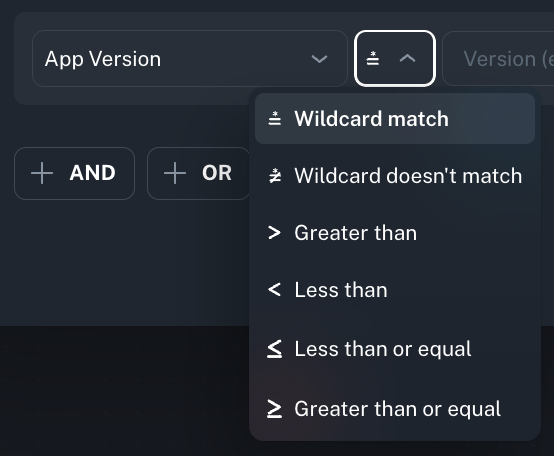
To ensure intuitive matching of app and OS version attributes, version-specific matchers that support comparison and wildcard operators are provided.
Non-equal Comparison Operators
For the operators >=, =<, >, and <, the comparison works as follows:
- The portion of the version string after the first occurrence of either '-' or '+' characters is ignored.
- The rest of the string is split by the "." character, and each component is compared separately from the first one to the last one, until they differ or there are no more components. The components are compared as integers if both sides of the comparison operator can be parsed as integers (the string "01" is parsed as the integer 1); otherwise, string lexicographic order is used.
Wildcard Operators
The wildcard operator works as follows:
- All characters entered, except for an asterisk character (*) and question mark character (?), are treated as literal characters.
- Question Mark Character (?) stands for "match exactly any one character here."
- Asterisk Character (*) is the matching wildcard. It means "match any zero or more characters here."
- The operator matches only if the version string fully matches the provided pattern.
The "not wildcard" operator is the negation of the wildcard operator described above.
Custom Fields
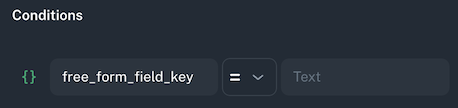
It also possible to evaluate a condition against any of your custom fields. Click the {} brackets icon inside a Generic Match to manually input the field name.
Read the SDK > Custom Logs and Global Fields sections to learn more about sending your own custom fields.