Create a SLO Alert
For background on SLO alerts, first see the following chapters in the Google SRE book:
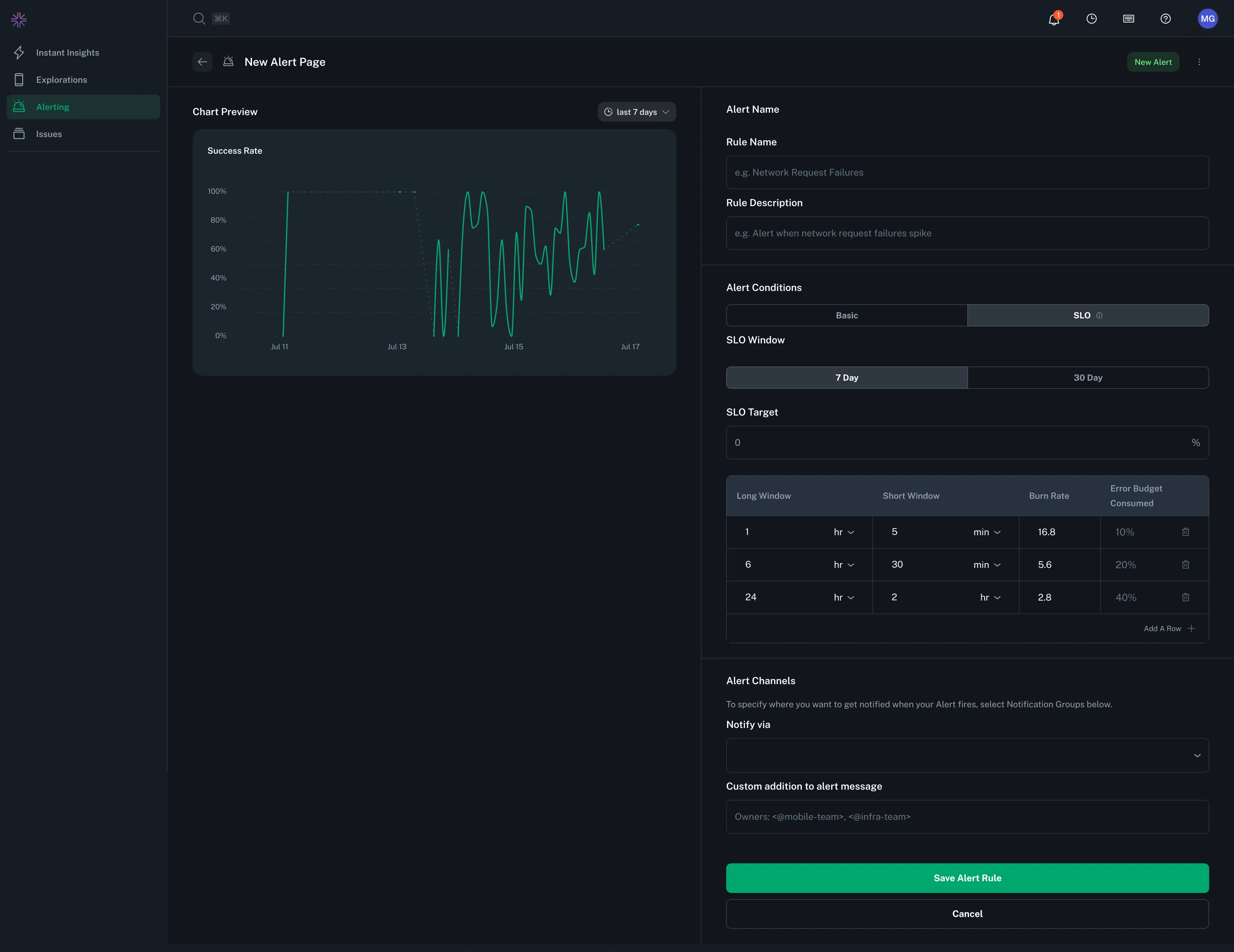
Defining an SLO alert requires the following:
- SLO alerts can only be defined on Rate Charts. The chart is assumed to be
<good events> / <total events> - Select an SLO window (7 or 30 days is supported)
- Select an SLO target percentage
- Select the settings for Multiwindow, Multi-Burn-Rate (MWMBR) that apply to the alert. Configuring these settings is nuanced and discussed in detail in the Google SRE book chapter linked above. To aid users we supply default settings for both 7 and 30 day SLOs that are likely a good starting point for most users.
When customizing MWMBR windows, the following settings are required for each window:
- The short time window
- The long time window
- The burn rate
Given the long window and the burn rate, the system will display the error budget % that would be consumed over the long window before the alert fires.
30 day SLO alerts default to the following settings:
| Long Window | Short Window | Burn Rate | Error Budget Consumed |
|---|---|---|---|
| 1h | 5m | 14.4 | 2% |
| 6h | 30m | 6 | 5% |
| 3d | 6h | 1 | 10% |
7 day SLO alerts default to the following settings:
| Long Window | Short Window | Burn Rate | Error Budget Consumed |
|---|---|---|---|
| 1h | 5m | 16.8 | 10% |
| 6h | 30m | 5.6 | 20% |
| 1d | 2h | 2.8 | 40% |
Targeted Notification Override (Optional)
SLO alerts support configuring different notification settings for each threshold window. This allows you to route alerts to different channels or teams based on the severity of the burn rate breach.
For each MWMBR window, you can optionally configure:
- Notify Via: Select specific notification groups that will receive alerts when this particular threshold is breached. This overrides the default notification group set for the alert.
- Custom Notification Text: Add custom text or @mentions specific to this threshold (e.g.,
<@mobile-team>for critical burn rates).
This is useful when you want different escalation paths based on severity. For example: - High burn rate alerts (fast error budget consumption) → Page on-call engineers - Lower burn rate alerts (slower error budget consumption) → Send to general Slack channel
You can also send test alerts for each threshold configuration to verify your notification settings are working correctly.